Tailwind CSS Cards
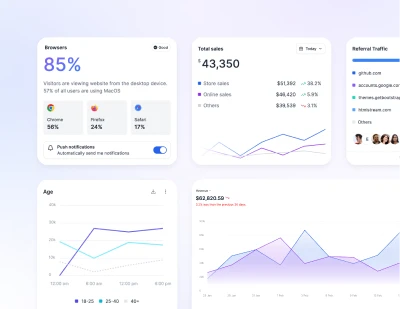
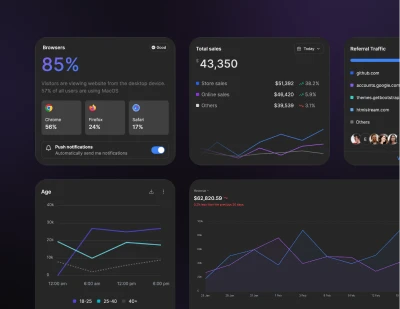
Build responsive Tailwind CSS cards with headers, footers, images, overlays, hover animations, horizontal layouts, card groups, alerts, and panels.
Default card
Use a basic card with media, text content, and supporting actions.
Cards assume no specific width to start, so they'll be 100% wide unless otherwise stated.
Content types
Cards can hold different combinations of text, media, headers, footers, and actions.
Large
Increase the card size when the content needs more breathing room or visual emphasis.
Navigation with select on mobile
Swap the tab-like navigation for a <select> on mobile when horizontal space is limited.
Images
Cards include a few options for working with images. Choose from appending “image caps” at either end of a card, overlaying images with card content, or simply embedding the image in a card.
Bottom image
Place the image at the bottom when the content should lead before the media.
Image overlays
Use the image as the card background and layer text on top when you need a more visual layout.
Attention needed
Image scaling animation on hover
Scale the card image on hover to add motion without changing the card layout.
Transition on hover
Animate the card shadow on hover to give the whole surface a stronger interactive feel.
Horizontal
Use a responsive horizontal layout when the image and content should sit side by side on larger screens.
Card group
Use card groups to render cards as a single, attached element with equal width and height columns.
Top bordered card
Add a colored top border to create a stronger status or category accent on the card.
Panel actions
Place quick panel actions in the card header for things like filters, menus, or settings.
Requires JS
Note that this component requires the use of our Tooltip plugin, else you can skip this message if you are already using Preline UI as a bundle.
Centered body content
Center the card body content for confirmation states, promotions, or compact summaries.
Empty state
Use an empty state card when there is no data yet and the interface needs guidance or next steps.
Scrollable body
Make the card body scrollable when the content should stay contained within a fixed-height panel.