
Update v4.2 - New components, 10+ framework guides, and quality improvements. Visit Changelog

Tailwind CSS Strong Password Plugin API

Headless, unstyled strong password plugin built with JavaScript and TypeScript, including installation, usage, options, methods, events, and selectors.

JavaScript Typescript

Installation

To get started, install Strong Password plugin via npm, else you can skip this step if you are already using Preline UI as a package.

  1. Install the plugin

    Install @preline/strong-password via npm

    Terminal
                              
                                npm i @preline/strong-password
                              
                            
  2. Add the plugin CSS

    Use @source to register the plugin's JavaScript path for Tailwind CSS scanning, then @import the plugin's CSS files into your Tailwind CSS file.

    main.css
                              
                                @import "tailwindcss";
                                
                                /* @preline/strong-password */
                                /* [!code highlight:3] */
                                @source "../node_modules/@preline/strong-password/*.js";
                                @import "./node_modules/@preline/strong-password/variants.css";
                                @import "./node_modules/@preline/strong-password/theme.css";
                              
                            
  3. Add the plugin JavaScript

    Include the JavaScript <script> that powers the interactive elements near the end of your </body> tag:

    HTML


    Additional Initialization Options

    Use the non-auto entry if you need manual initialization. In this mode, automatic initialization on page load is not included, so the component should be initialized explicitly.

    HTML (non-auto)


    Via bundler

    When using a bundler (Vite, webpack, etc.), import the plugin directly as an ES module.

    JavaScript (auto)
                              
                                import "@preline/strong-password";
                              
                            
    JavaScript (non-auto)
                              
                                import HSStrongPassword from "@preline/strong-password/non-auto";
                                
                                HSStrongPassword.autoInit();
                                
                                // Or initialize a specific element manually
                                const el = document.querySelector("#strong-password");
                                if (el) new HSStrongPassword(el);


Example

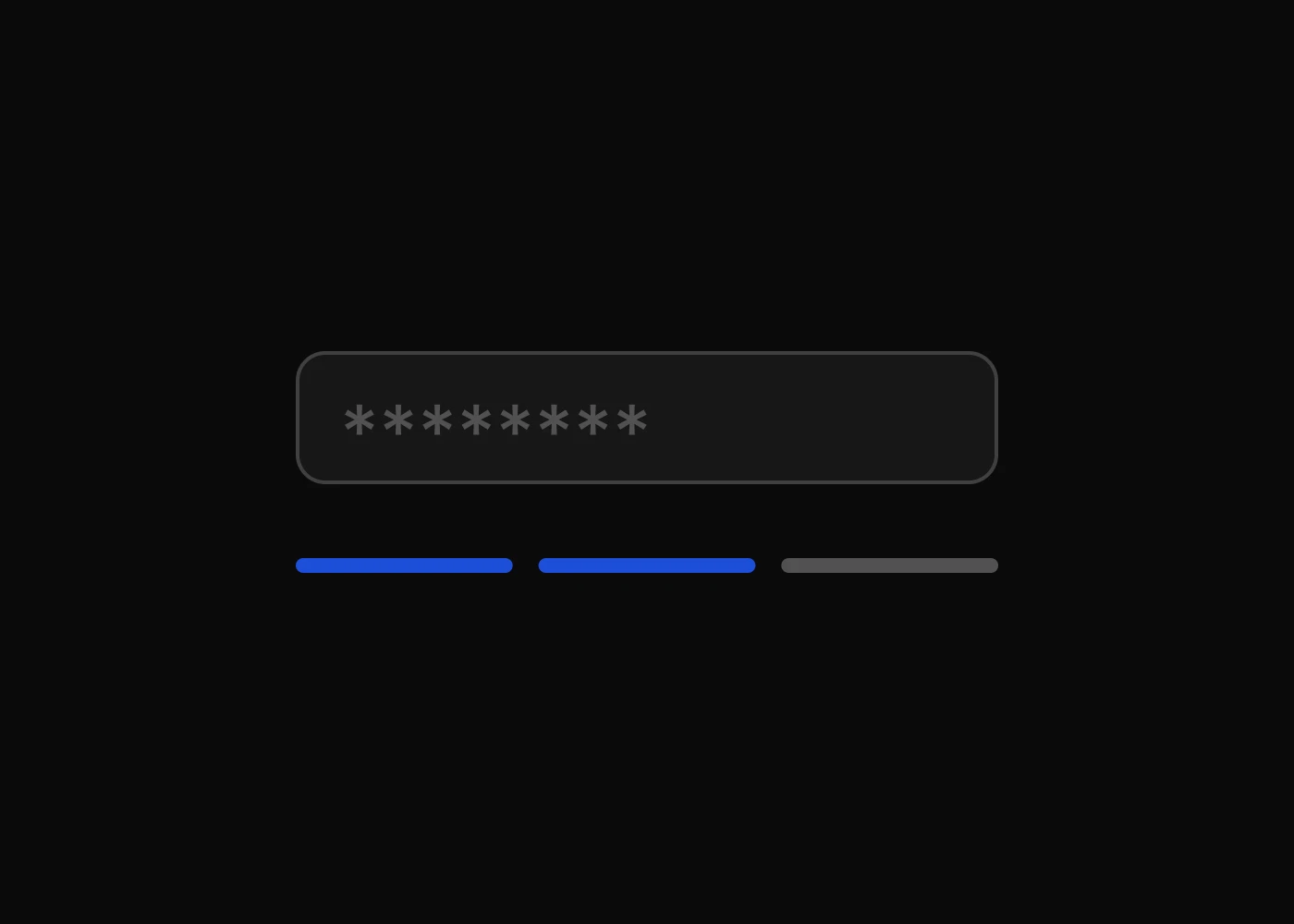
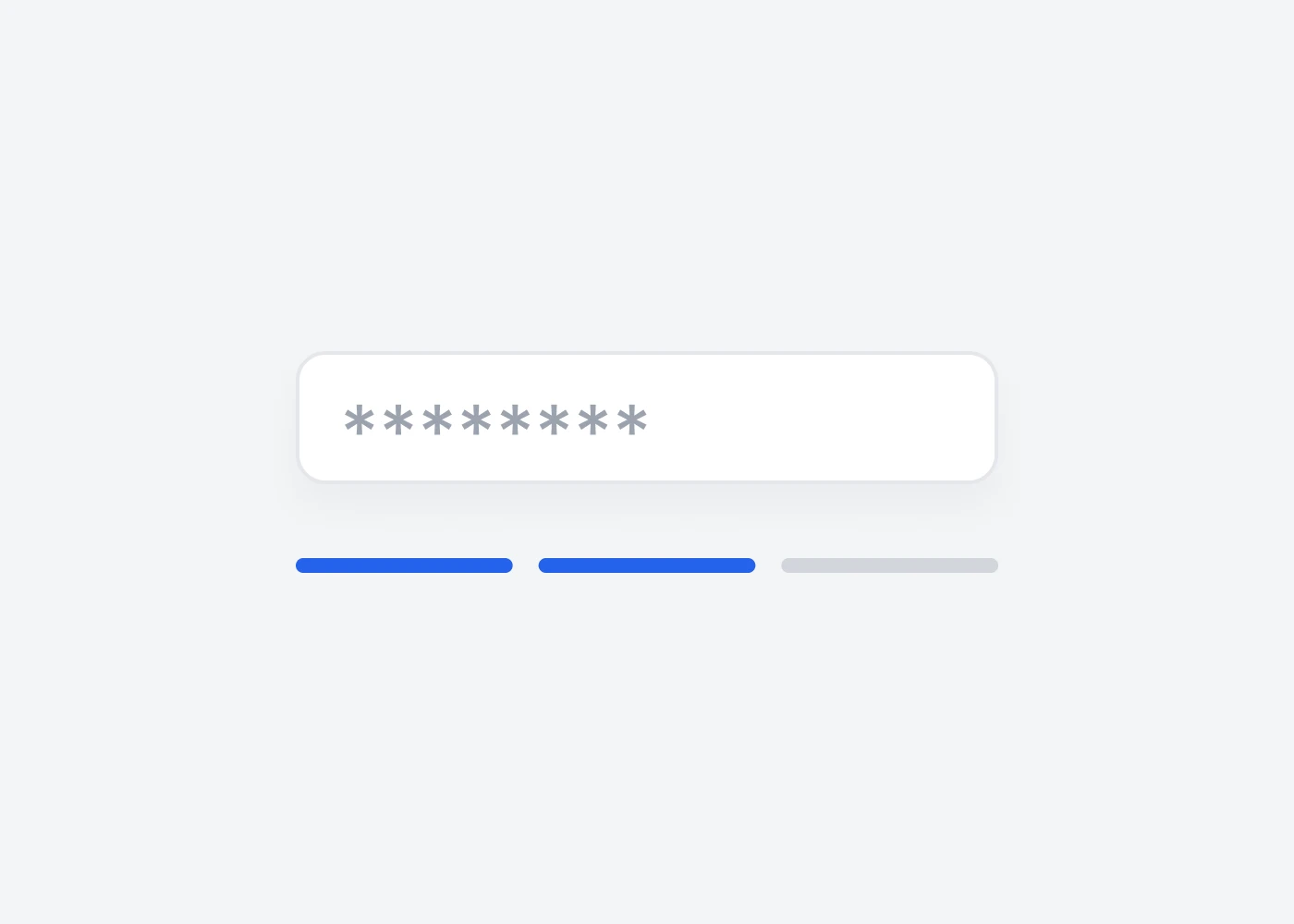
Here is an example of a strong password with level of weakness, hints and progress.

Basic usage

Prefer to create your own style? Here is a completely unstylized example.

HTML
                      
                        <div class="flex-1">
                          <input type="password" id="hs-strong-password-input" class="py-3 px-4 block w-full border-stone-200 rounded-lg text-sm focus:border-blue-500 focus:ring-blue-500 dark:bg-neutral-900 dark:border-neutral-700 dark:text-neutral-400"
                          />
                          <div data-hs-strong-password='{
                                "target": "#hs-strong-password-input",
                                "stripClasses": "hs-strong-password:opacity-100 hs-strong-password-accepted:bg-green-500 h-2 flex-auto rounded-full bg-blue-500 opacity-50 mx-1"
                              }' id="strong-password" class="flex mt-2 -mx-1"
                          ></div>
                        </div>
                        
                        <div class="mb-3">
                          <span id="strong-password-weakness"></span>
                        </div>


Data Options

Name Description Options Default value
data-hs-strong-password Activate a Strong Password by specifying on an element. The value should contain at least one lowercase number, one uppercase letter, one number, one special character (!%&@#$^*?_~), and minimum 6 characters. Should be added to the content block that contains the checks.
:target (required) Determines which element should be observed. This must be a valid selector. string
:hints Determines which element should be observed as hints container. This must be a valid selector.
There are some selectors that available for using inside the hints:
  • [data-hs-strong-password-hints-weakness-text] determines which element should be observed as weakness text container. It should contain an array of strings, e.g. - ["Empty", "Weak", "Medium", "Strong", "Very Strong", "Super Strong"]. Each text is for the concrete strength value, e.g. "Medium" have index 2, and it will be set up if strength is also 2. "Empty" have index 0, and it will be shown if field is empty and have no any strength
  • [data-hs-strong-password-hints-rule-text] determines which element should be observed as rule text container. It could have one of the follow value: "min-length" | "lowercase" | "uppercase" | "numbers" | "special-characters"
  • [data-check] determines which element should be observed inside the [data-hs-strong-password-hints-rule-text] as rule check icon container
  • [data-uncheck] determines which element should be observed inside the [data-hs-strong-password-hints-rule-text] as rule uncheck icon container
string
:stripClasses Defines CSS classes for each strip.
:minLength Determines minimum password length. number 6
:mode Determines which mode should be used. If popover is selected, the hints will be displayed as a popover. "default" | "popover" default
:popoverSpace Available if mode is set to popover. Determines the space between the popover and the target element. number 10
:checksExclude Determines which checks should be excluded. It could contain an array of strings, e.g. - ["min-length", "lowercase", "uppercase", "numbers", "special-characters"]. array []
:specialCharactersSet Determines which special characters should be used for checking. It could contain a string of available characters, e.g. - "!%&". string !"#$%&\'()*+,-./:;<=>?@[\\\\\\]^_`{|}~

Tailwind Modifiers

Name Description
hs-strong-password:* A modifier that allows you to set Tailwind classes for the passed stripes.
hs-strong-password-accepted:* A modifier that allows you to set Tailwind classes when password strength is accepted.

Methods

The HSStrongPassword object is contained within the global window object

Method Description
Public methods
recalculateDirection() Force recalculation for dropdown hint.
destroy() Destroys the instance, removes generated markup (if any), removes added classes and attributes.
Static methods
HSStrongPassword.getInstance(target) Returns the element associated to the target.
  • target should be a Node or string (valid selector)

Force dropdown hint position to be recalculated when scrolling (public method).

JavaScript
                      
                        const strongPassword = new HSStrongPassword(document.querySelector('#strong-password'));
                        
                        document.addEventListener('scroll', () => {
                          if (strongPassword) strongPassword.recalculateDirection();
                        });


Force dropdown hint position to be recalculated when scrolling (mixed).

JavaScript
                      
                        const strongPassword = HSStrongPassword.getInstance('#strong-password');
                        
                        document.addEventListener('scroll', () => {
                          if (strongPassword) strongPassword.recalculateDirection();
                        });


Events

Method Description Returned value
on:change Called when target element was changed.
  • strength number. Current level of strength (0 - 4). Default - 0
  • rules array. Current set of passed checks ("lowercase", "uppercase", "numbers", "special-characters")

An example where a function is run every time a value changes.

JavaScript
                      
                        const el = HSStrongPassword.getInstance('#strong-password');

                        el.on('change', ({strength, rules}) => {...});


Ready to use Components

Looking for prebuilt UI components based on the Tailwind CSS? Preline UI packs hundreds of component examples for all your website needs.

Strong Password

Explore ready-to-use Tailwind CSS examples built with Preline UI.

View Strong Password examples
Strong Password

© 2026 Preline Labs.